Wiki Pages
This document describes the core concepts of operating a wiki.js instance in a secure manner.
Wiki pages onboarding
TL;DR
Depending on what your page will contain, create your page in an appropiate location:
- Is it a project we are working on?
- Place it in the
/Projects/folder. Pages here are default-private, unless they have thepublictag which makes them public.
- Place it in the
- Is it a course material or guide?
- Can it be published? Place it in the
/Courses/folder. Pages here default to public. - Is it exclusively internal? Place it in the
/Guides/folder. It is default-private.
- Can it be published? Place it in the
- Is it an activity and you are going to document logistics, etc?
- Place it in the
/Activities/folder. Pages here are default-private, unless they have thepublictag which makes them public. - Meeting notes go in
/Meetings/. It is default-private.
- Place it in the
- Finally, infrastructure and IT details should go into
/Infrastructure/. This folder is intentionally public, so take care not to publish any sensitive information (credentials, API keys, etc). - General interest pages should go into the root of the wiki. For example: Account setup guide, this guide.
In the Page Properties, at the Scheduling tab, there is a Published/Unpublished option that you can toggle. By default, a page starts as Published and behaves normally. When set to Unpublished, the page is visible only to logged in users that have the page:write capability.
We do not yet use this feature because applying the public tag is more flexible.
Core Concepts
Every piece of content in Wiki.js is a "page." Each page has a path (e.g., /Projects/spinspinspin) that doubles as its URL and its place in a virtual folder hierarchy.
There's no rigid folder structure enforced - the hierarchy is implied by the path segments, so you can create /Projects/Alpaha/overview without first creating /projects or /projects/Alpha page. This example page will sit in the Projects -> Alpha folders. The page filename (overview) does not need to coincide with the page's name.
Please use only alphanumeric characters in folder and page paths. Folders are named exactly as in paths, whereas pages can have a different (and richer) name configured once the page is created.
{.is-info}
If you want spaces or special characters in folder names, look at the special case here.
Editors and Content Formats
When you create a page, you choose an editor (Markdown, Visual/WYSIWYG, or raw HTML). The editor choice is stored per-page, so different pages in the same wiki can use different formats. The content is stored internally and for display. You are able to freely convert pages between the format, but keep in mind that some formatting loss might occur.
Page Properties
Each page carries metadata including a title, a short description, tags, the author, creation/modification timestamps. Tags are freeform and used for categorization and search filtering.
Special tags:
publicwill force the page to be public regardless of other permissions.
The Wiki tracks page history. Every save creates a new version, and you can view diffs between versions, restore old versions, or see who changed what and when.
Pages are able to be localed to different languages, but for now we will use only the default locale (en).
For editors: No action needed.
Navigation
A page tree is built from the paths where pages are created. Folders are shown as-is in the page path (Projects/spinspinspin -> Projects folder) and pages have their title shown (Projects/spinspinspin -> SPINSPINSPIN)
The tree view of the wiki is automatically adjusted based on the permission level of the current logged in user.
Permissions and Access
Page access is governed by a group-based permission system. Rules can be scoped by path patterns (e.g., "Volunteers can edit pages under /drafts/*"), so you get granular control without per-page ACLs. Permissions cover all actions possible on the wiki including the comment system.
Users and their respective groups are fetched automatically from Authentik upon each login.
The permissioning logic is built on Groups and Page Rules, where Global Permissions act as a master switch for Page Rules. We create rules attached to groups, and the users inherit the rules of the groups they are member of:
- When a page is visited, all the Global Permissions of a user's groups are pooled and verified. If any of them grants access, page rules are evaluated. (
ORoperation). - All groups are iterated, collecting every matching pageRule from each group.
- Resolve conflict via specificity:
EXACT>TAG>REGEX>END>START, Deny wins over Allow on a tie.
When editing permissions, keep in mind the following design principle:
- Check all the Global Permissiosn that the user needs to have anywhere on the Wiki
Example: Volunteers need to comment on page X, so check the comment permission. - Create Page Rules in two steps:
- Ensure the group's Page Rules allows to use the desired action on the path.
- Allow read permissions for all intermediate paths (folders) leading up to the desired page. This is because from the site tree perspective, the user needs read permission for the folder to be able to see its existence, due to them being treated as a file-like structure. If we skip this, the user will be able to act on the page if given the link, but will not be able to discover it using the site tree.
Folders without readable children can still appear - a virtual folder node is checked against
read:pagesusing its own path, but since folders have no pageId, a user might see empty folders if they can access the complete folder path but none of the child pages
Special cases
Folders with spaces
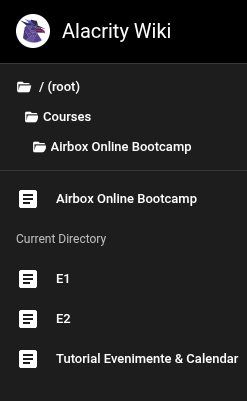
To create a folder with a space in the name, you MUST create the folder without space and an auxilliray page, with the same filename as the folder.
You then will give the page the title you want your folder to be named. The folder will automatically inherit the page's title.
Example:
/Courses/AirboxOnlineBootcamp      (the folder)
/Courses/AirboxOnlineBootcamp      (the page, named "Airbox Online Bootcamp")

// will render the folder as
Courses -> Airbox Online Bootcamp
This will look like this:
 |
|---|